Tutorial: Your First Deck
In this tutorial you’ll build a five-slide talk, present it with the presenter window, export a PDF and publish it. It takes about 15 minutes.
You’ll need Bun and a terminal.
1. Create a project
Section titled “1. Create a project”bun create astlide my-talkscd my-talksbun installbun run devOpen the URL the dev server prints. You’ll see the deck index — every folder under src/content/decks/ is a deck.
2. Create a deck
Section titled “2. Create a deck”bunx create-astlide deck hello-astro --theme default --format mdxThis creates src/content/decks/hello-astro/ with a _config.json and a few starter slides. Open _config.json and set your own details:
{ "title": "Hello, Astro", "author": "Your Name", "date": "2026-10-09", "theme": "default"}Delete the starter slides — we’ll write our own. Slides are numbered files; the number sets the order.
3. A cover slide
Section titled “3. A cover slide”Create 01-cover.mdx:
---slideLayout: covernotes: "Introduce yourself."---
# Hello, Astro
Why I build my slides with code
The page updates as you save. slideLayout: cover centres the title; notes are only visible to you in the presenter window.
4. Reveal points one by one
Section titled “4. Reveal points one by one”Create 02-why.mdx:
---slideLayout: default---
# Why slides as code?
<Fragments>
- Version control and reviews- Reuse components across talks- Export to PDF and PowerPoint
</Fragments>
Press →: each bullet appears on its own step before the deck moves on. Fragments can do much more — reveal several items together, hide them again, or highlight.
5. Walk through code
Section titled “5. Walk through code”Create 03-code.mdx. The {1|3-5|all} after the language steps through the highlighted lines:
---slideLayout: code---
# A component
```astro {1|3-5|all}<Card title="Hello">  <p>    Slides can render    real components  </p></Card>```
6. Two columns and a diagram
Section titled “6. Two columns and a diagram”Create 04-compare.mdx:
---slideLayout: two-column---
# Before and after
<Left>
### BeforeSlides in a GUI app, exported by hand.
</Left><Right>
### AfterMarkdown in git, built by CI.
</Right>
And 05-flow.md — a plain Markdown slide with a Mermaid diagram (run bun add mermaid first):
---slideLayout: default---
# How it ships
```mermaidflowchart LR  Write --> Commit --> CI --> Pages```
Mixing .mdx and .md (and .html) in one deck is fine.
7. Present
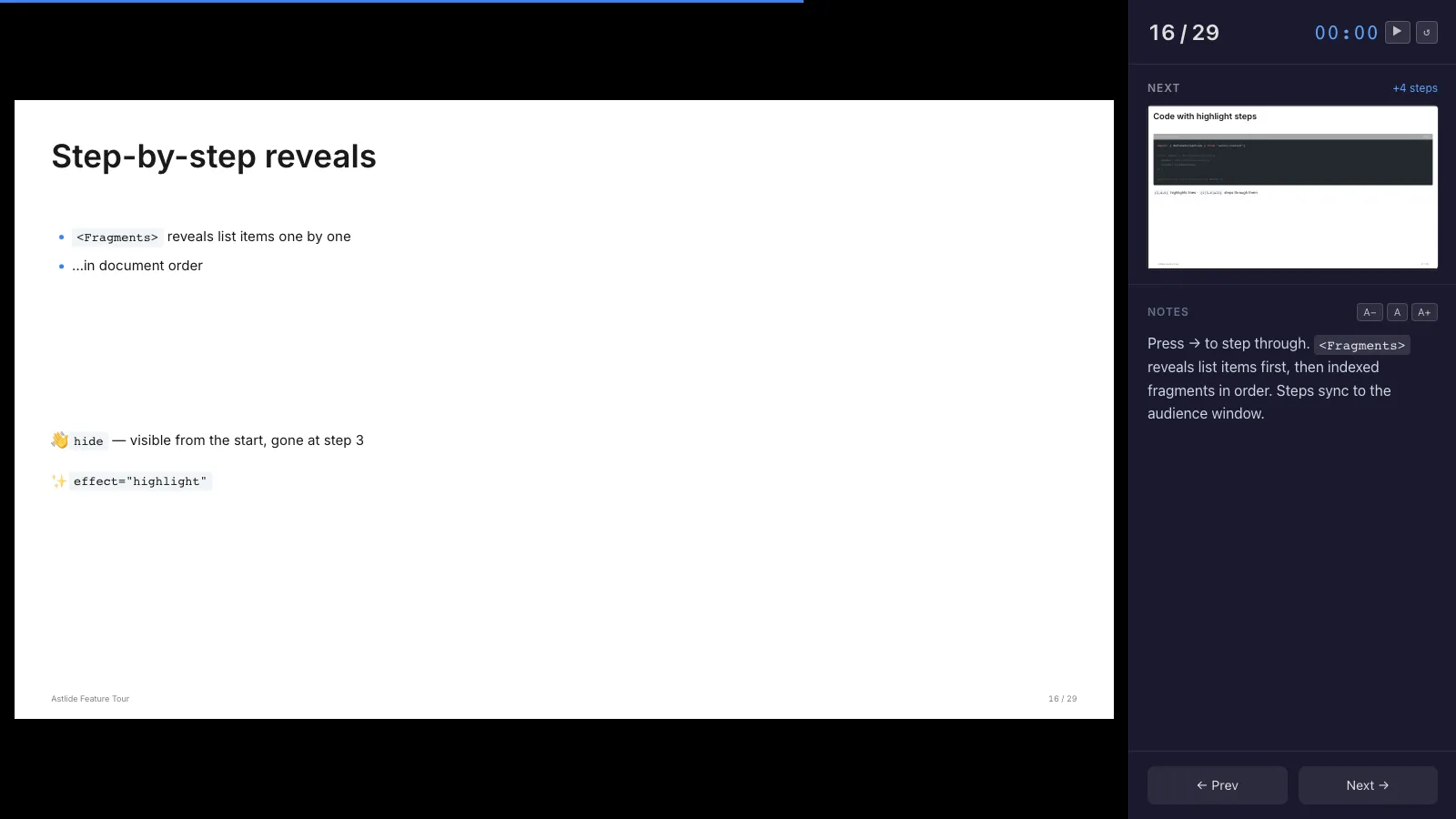
Section titled “7. Present”Go back to slide 1 and press p to open the presenter window. It shows the next slide, how many steps are left, your notes and a timer. Move it to your laptop screen and put the original window on the projector — they stay in sync.
A few more keys worth knowing:
| Key | |
|---|---|
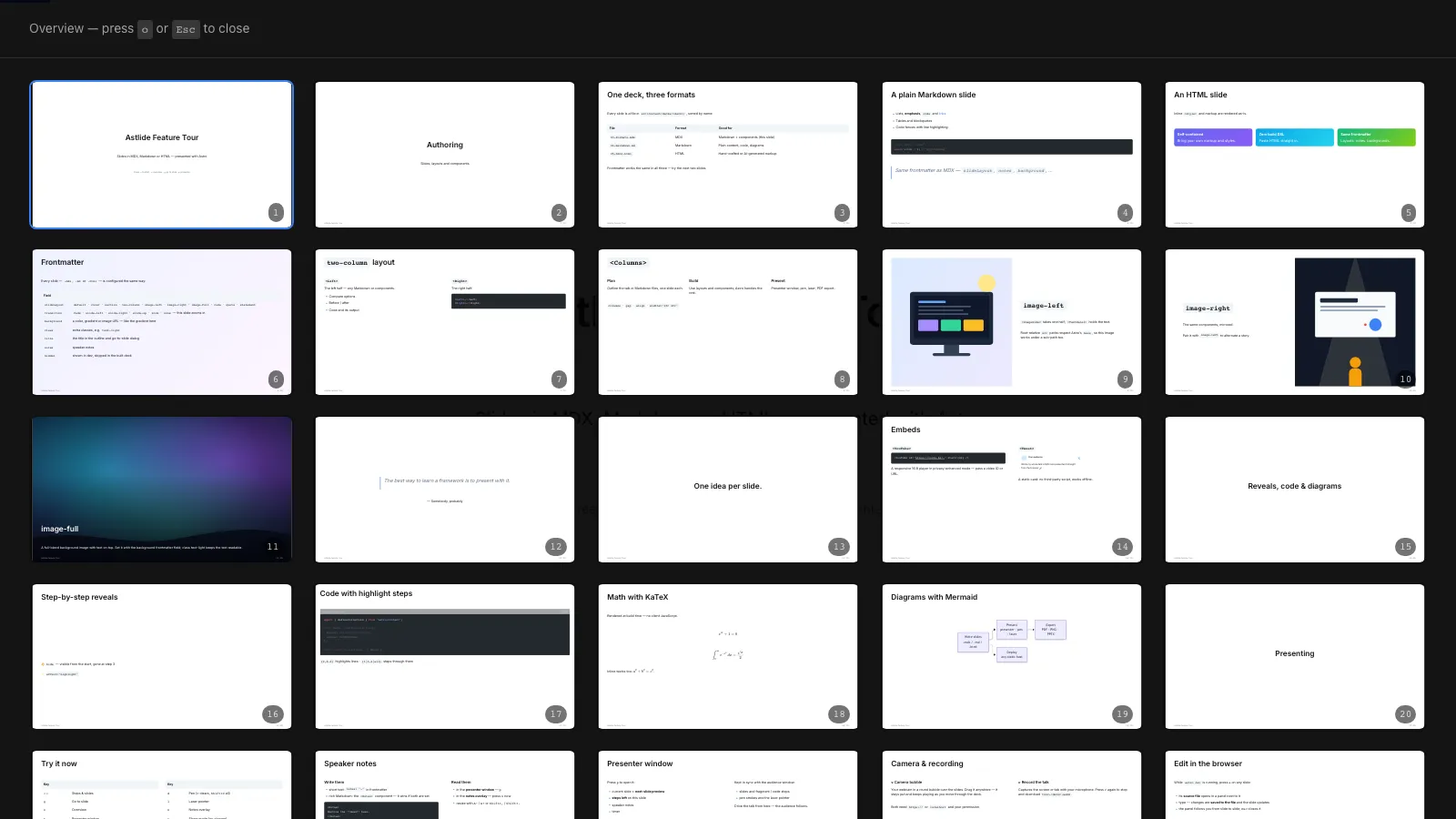
| o | Overview of all slides |
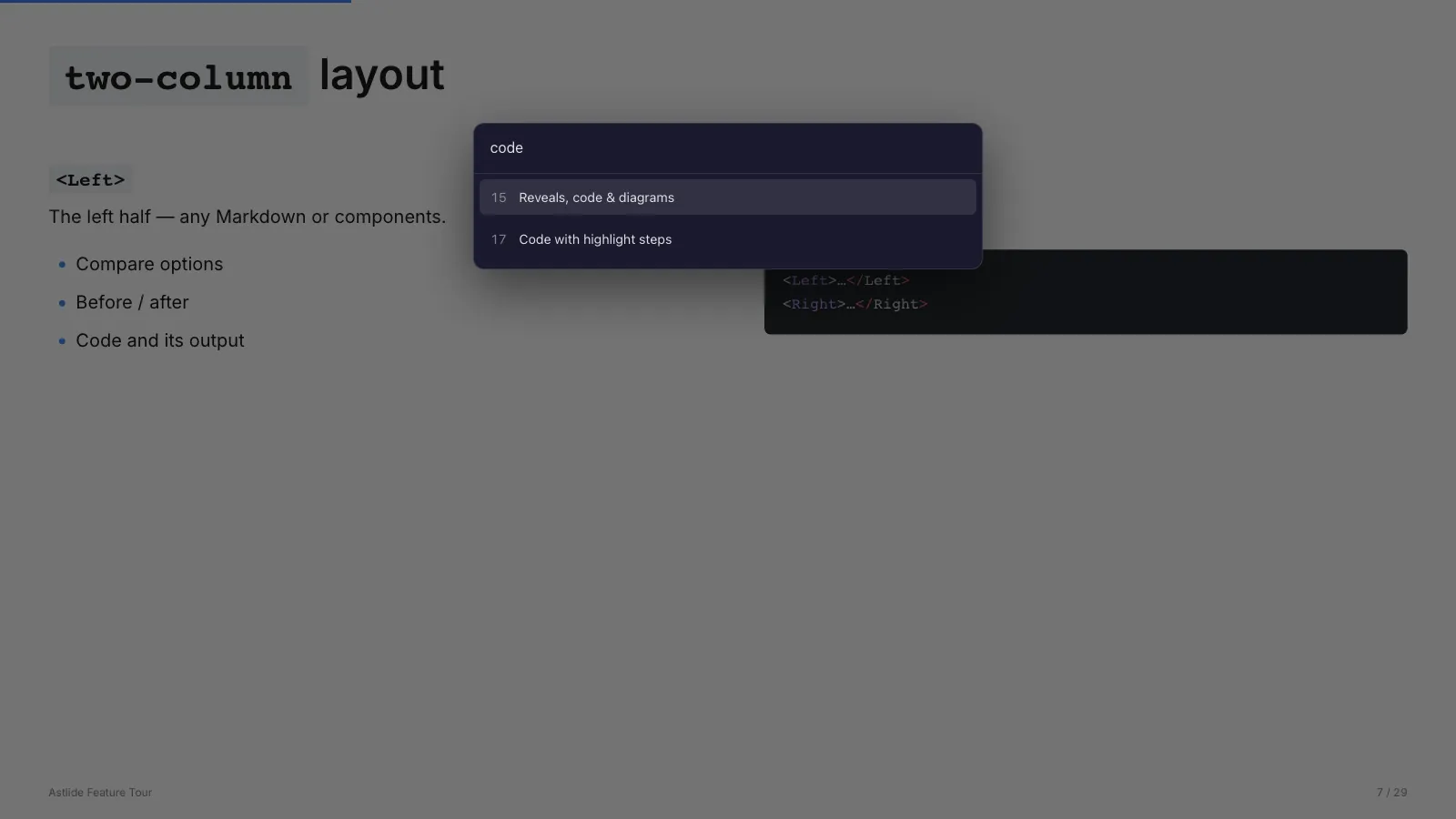
| g | Go to a slide by number or title |
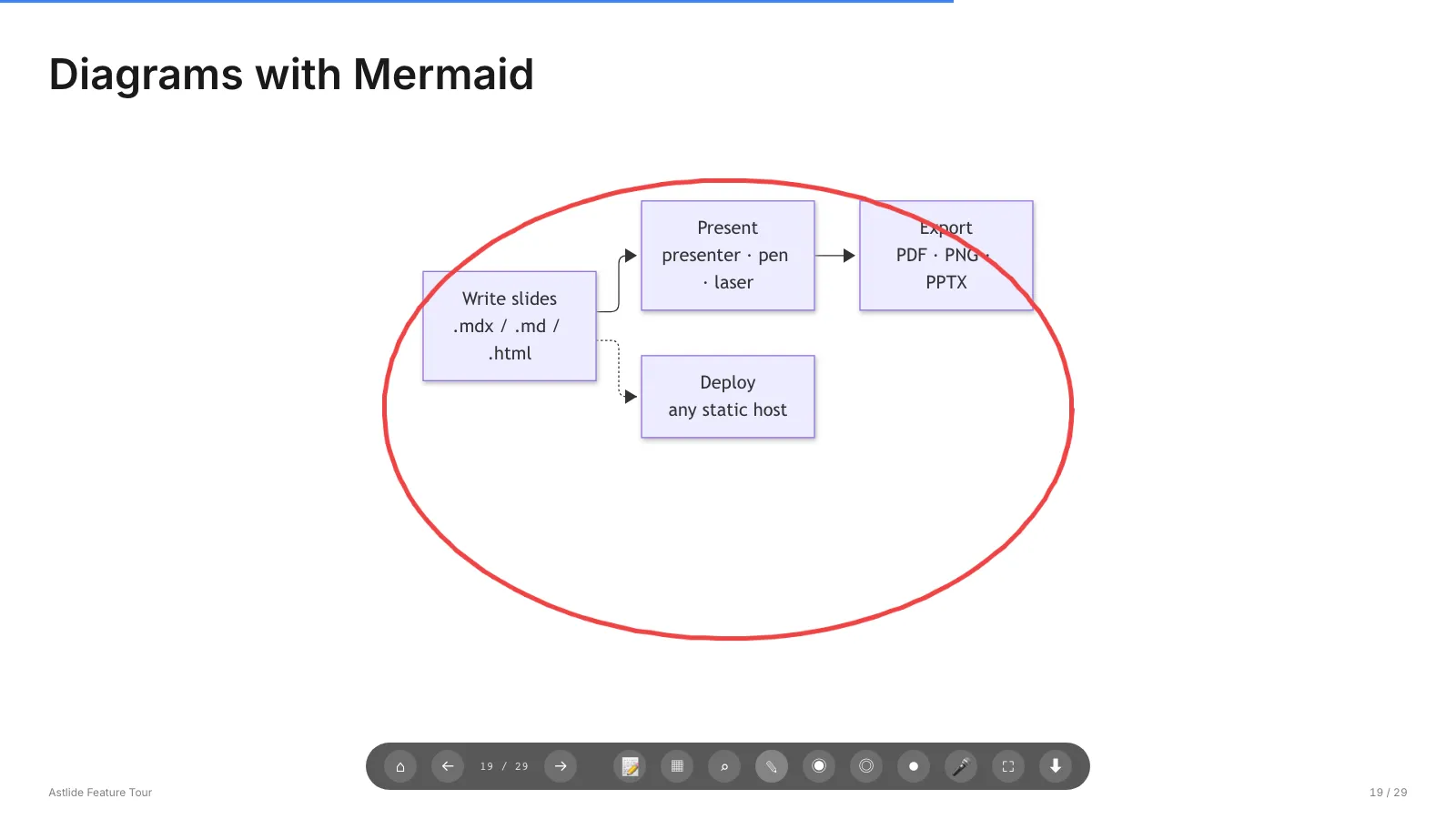
| d / l | Pen / laser pointer — shown on the audience screen too |
| f | Fullscreen |
The full list is in Presenting.
8. Export a PDF
Section titled “8. Export a PDF”bunx playwright install chromium # once — Playwright comes with @astlide/corebun run export hello-astro # or: bunx astlide export hello-astroAstlide builds the site, renders it and writes exports/hello-astro.pdf, with every slide in its final state (all steps revealed). Add --pptx for an editable PowerPoint, or --png for images; see Export.
9. Publish on GitHub Pages
Section titled “9. Publish on GitHub Pages”Tell Astro where the site will live:
export default defineConfig({ site: "https://<user>.github.io", base: "/my-talks", integrations: [astlide()],});Push the project to a GitHub repository named my-talks, enable Settings → Pages → Source: GitHub Actions, and add Astro’s GitHub Pages workflow. Your talk is then at https://<user>.github.io/my-talks/hello-astro/1/.
What’s next
Section titled “What’s next”- Browse every layout and theme in the Gallery.
- Try the feature tour deck.
- Make it yours with themes, plugins and decorators.